Login
After a system start-up, or when a user has logged out, you will be presented with a log-in screen containing the following fields:
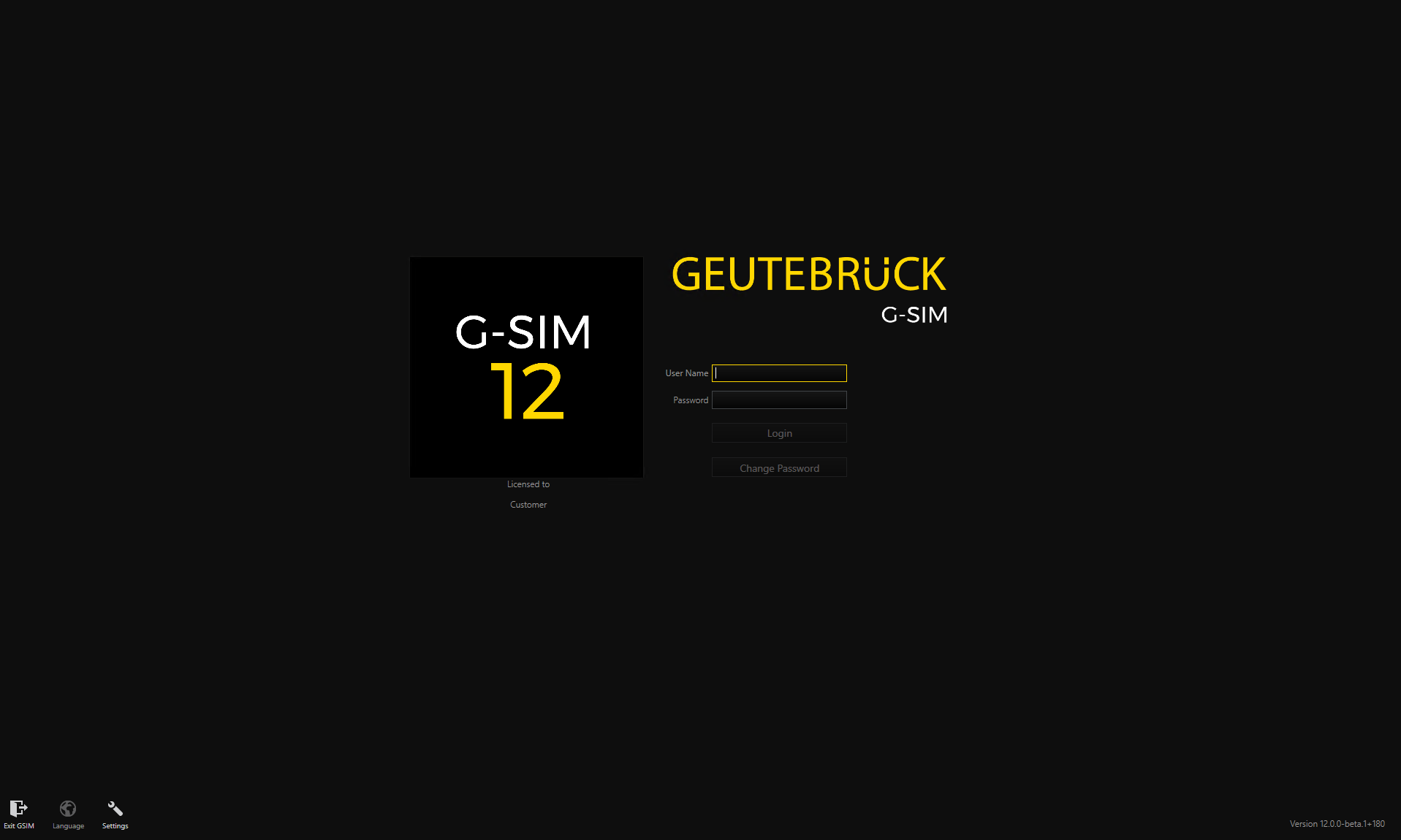
G-SIM uses a five step initialisation and authentication process after start-up. A progress bar will indicate the authentication stage which may be:
-
Loading Your Profile
Connecting
During this phase the application is connecting to the main G-SIM server. This process might take several seconds, but if it fails to complete there might be a network connection problem, or the server might be down. A "Connection Failed" message will be displayed, and an eight second countdown will begin before the application will retry to connect to the server. Make sure you are connected to the local network. Contact your designated system administrator if you suspect a server problem.
Loading Initial Data
After a successful connection, the application will receive initial data from the server to facilitate the rest of the initialisation and authentication process.
Logging In
Enter your user name and password in the appropriate fields and click the Login button, or press Enter. Remember that the Password is case sensitive.
After three unsuccessful tries to log in, your account will be locked by the server, and an alarm will be generated. The system administrator will have to unlock your account before you will be granted access again
During this stage a login request will be sent to the server and the application will wait for validation. If the entered User Name or Password is incorrect, an Access Denied message will be displayed. If access was granted, the system will continue to sign in.
Start as a ReCon
For further Operator Consoles and Remote Consoles it is possible to start them in the flexible ReCon mode to be able to control them from your controlling console. Instead of entering the credentials to log in, you use the Start as a ReCon button.
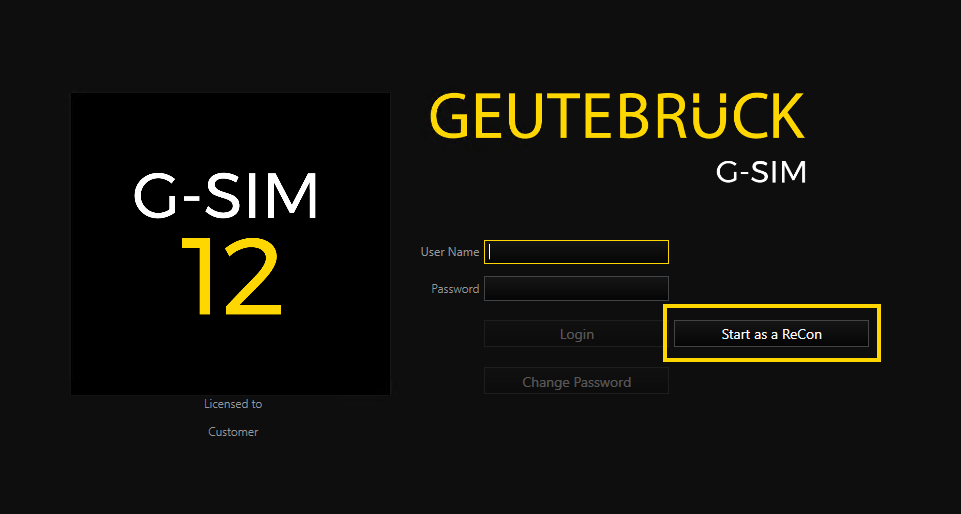
The Start as a ReCon button is only available when in the Management Console the flexible ReCon mode is activated for the respective console. For more information see Flexible ReCon Mode.
Signing In
Your privileges and other user-specific information are sent from the server to the local system. The main interface will be populated with this data.
During this process your profile is applied to the user interface. The main interface will be displayed once all the necessary data are processed.